Using Quarter Inch · Getting started
Find a quilt in your library: search, filters, labels
Your quilts is where every quilt lives, made here or from EQ. Here’s how to find one, what the labels on each card mean, and what each quilt’s menu does.
The short answer
Every quilt you have, made here or from EQ, is in your library, and each card says where it stands. Search at the top, narrow the list with Show (All, Made here, From EQ8, To check), and sort by Last opened, Recently imported or Name. Each card’s pill says where the quilt stands, such as ✓ Exact or Cutting · 10 of 22.
Find a quilt
Your quilts is the first page after you sign in. Every quilt you’ve made or brought across from EQ is here, as a card with its picture.
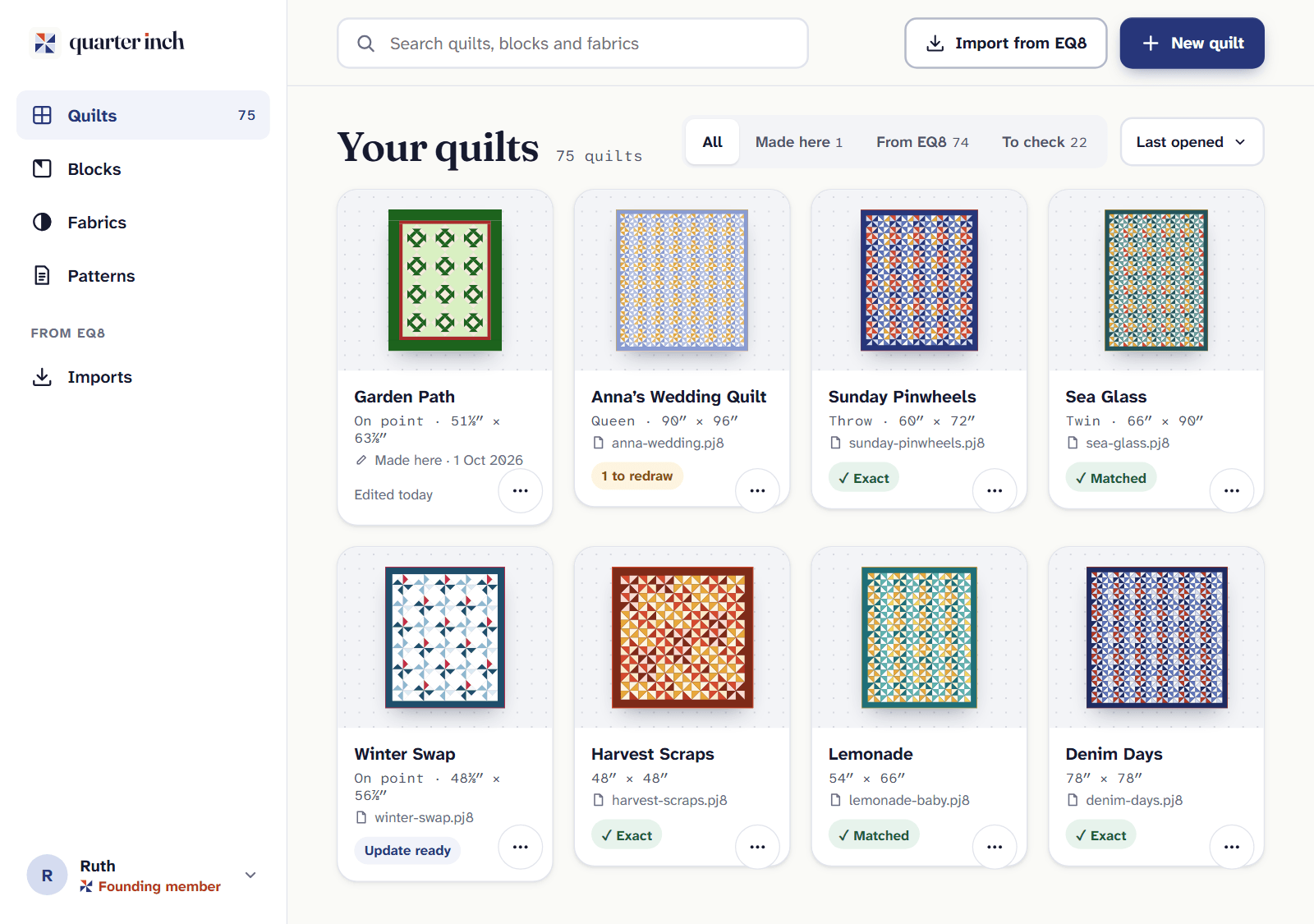
To search, type in the box at the top. It looks through quilts’ names, blocks and fabrics.
To narrow the list, choose from Show: All, Made here, From EQ8 or To check. The filter only appears when it would narrow something.
To change the order, open the sort menu and choose Last opened, Recently imported or Name.
What the labels on a card mean
| Label | What it means |
|---|---|
| ✓ Exact | From EQ, drawn just as it was in EQ. |
| ✓ Matched | From EQ, with EQ’s solids shown beside the nearest color on a color card. |
| “1 to redraw” | Drawn, but a part isn’t quite as EQ has it yet. The import report says which. |
| Not yet | We can’t draw this quilt yet. It’s kept safe in your original file. |
| Update ready | Our reader has improved and can read this quilt better. Nothing changes until you choose. |
| “Cutting · 10 of 22” | You’re ticking off cuts: 10 of its 22 are done. |
| ✓ All cut | Every cut is ticked. |
| “Sewing · 3 of 12” | You’re ticking off sewing steps. |
| ✓ Made | Every sewing step is ticked. |
| “Designing · 2 of 3” | On the Free plan: this is one of the 3 quilts you’re designing. |
| Read-only | Quilter ended and this quilt isn’t one of the 3 kept open to design. Open, view and export it any time. |
To check gathers every quilt with something to look at: a part to redraw, a quilt we can’t draw yet, or one with an update ready.
A quilt’s menu
Each card has a ⋯ menu. What it offers depends on the quilt:
- Open, Make a copy… and Compare colorways…;
- for a quilt from EQ, Import report, the file it came from, and Download the original when we kept a copy;
- Export this quilt and Delete….
Starting something new
Above your quilts, Start something new offers a Blank quilt and the six sample quilts. Choose Hide to fold it to its heading, and Show to open it again. To start a quilt your own way, choose New quilt at the top.
After ticking off cuts, the library offers Pick up where you left off, with the quilt you ticked most recently and what’s next.
If it doesn’t look right
- A quilt is missing. Clear the search and choose All. If you deleted it, look in Recently deleted: it waits there for 30 days.
- “No quilts to show here.” The filter you chose has nothing in it. Choose All.
- No Recently deleted in the sidebar. It only appears while something is in it.
For getting a quilt back, see Getting a deleted quilt back.
Checked against the app on
Questions
Short answers.
Something else? A real person replies.
hello@quarterinch.app
What does “To check” mean in my library?
It gathers the quilts with something to look at: a part that isn’t drawn quite as EQ has it yet, a quilt we can’t draw yet, or one whose update is ready.
What does “✓ Matched” mean?
The quilt came from EQ, and EQ’s solid colors are shown beside the nearest color on a color card.
Where did my deleted quilt go?
To Recently deleted, where it waits for 30 days. Choose Put back to return it to your library.
Can I search by fabric?
Yes. The library’s search looks through quilts’ names, blocks and fabrics.