Using Quarter Inch · Cutting and printing
Printing from an iPad or a phone
The PDF is made on your iPad or phone, so you can print at the sewing table. Match the paper, keep the scale at 100%, and measure the square before you cut.
The short answer
The PDF is made on your iPad or phone, so you can print right at the sewing table. On an iPad, tap Download, then Share, then Print, on the paper the PDF was made on; on a phone, tap Share or print and keep the scale at 100%. Either way, measure the 1″ square first.
Print from an iPad
On the quilt’s Cutting page, choose Print, tick the parts, and under Paper choose the paper in your printer: Letter or A4. Then Make the PDF. It’s made on the iPad.
A sheet comes up from the bottom: Your PDF is ready, then Printing from this iPad. Tap Download, then the Share button, then Print.
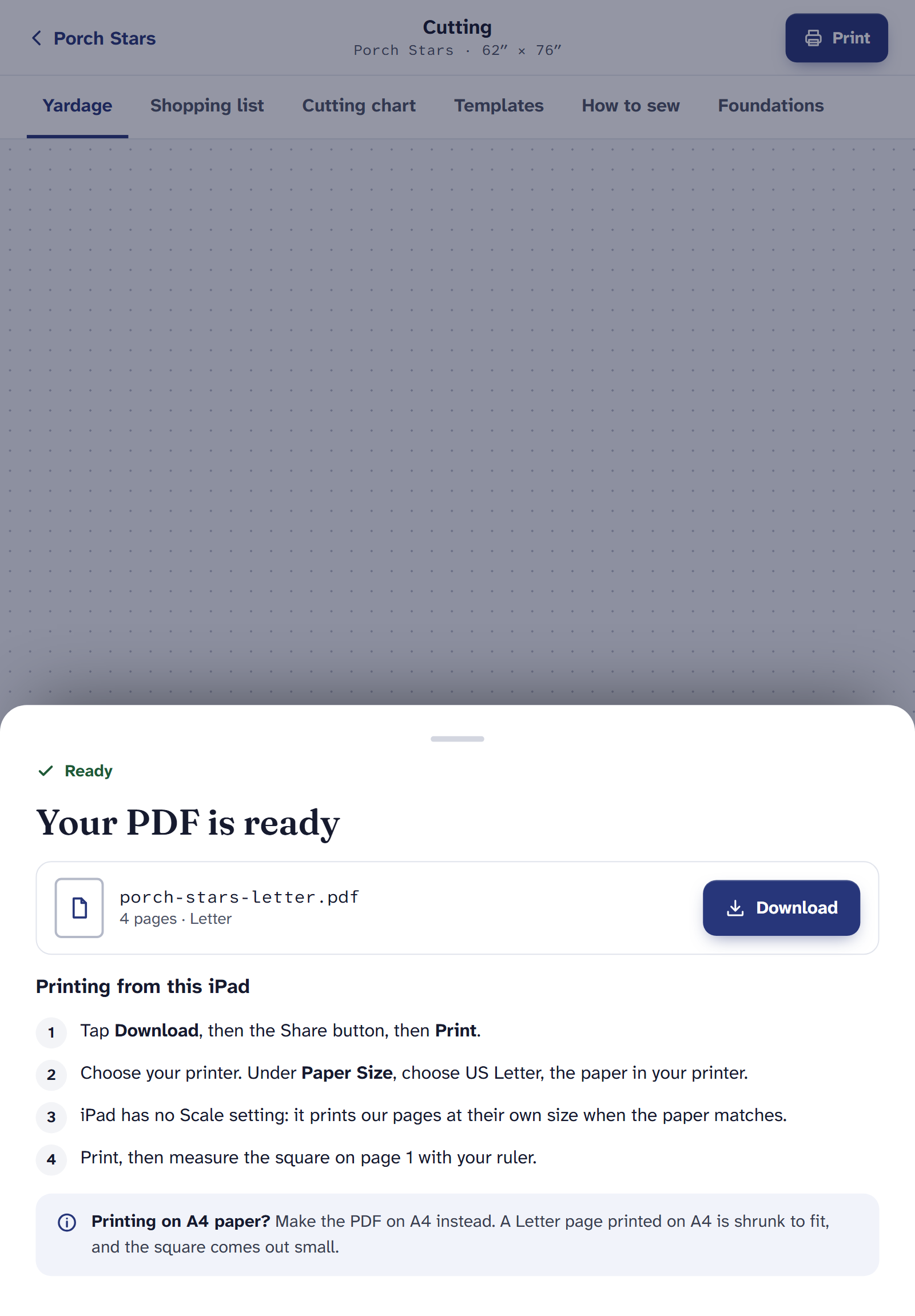
On an iPad, held upright. Choose your printer. Under Paper Size, choose the paper the PDF was made on.
Print, then measure the square on page 1 with your ruler. It should be exactly 1″.
Print from a phone
On the quilt’s Cutting page, tap the ⋯ menu at the top and choose Print, or tap Download the PDF under the yardage. Choose the parts and the paper, then Make the PDF. It’s made on the phone.
A sheet comes up: Printing from this iPhone, or Printing from this phone. Tap Share or print to send the PDF to AirPrint on an iPhone, your printer’s app, a print shop or your computer. Or tap Save to Files to print it later.
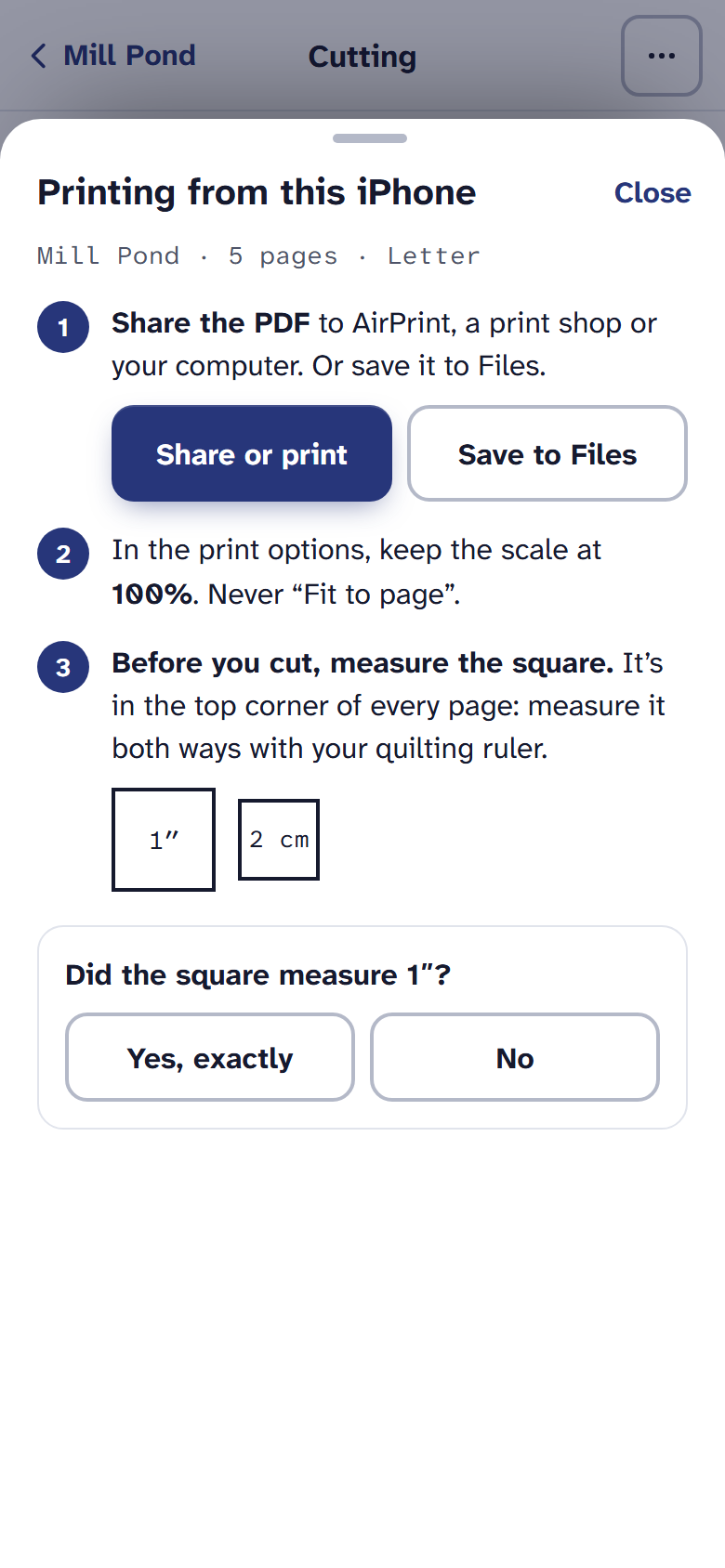
On a phone, the steps are the phone’s. In the print options, keep the scale at 100%. Never “Fit to page”.
Before you cut, measure the square in the top corner of a page, both ways, with your quilting ruler. Then answer Did the square measure 1″?: Yes, exactly, or No for what to change.
Or print from a computer
Saved the PDF to Files, iCloud Drive or email? Open it on a computer and follow the Ready dialog’s steps for Mac, Windows or Chrome: Print your quilt.
On any device. Quilter is $9 a month or $89 a year. Yardage and the Shopping list are free.
If it doesn’t look right
- The square is small. The paper doesn’t match, or the scale was set to fit. The test square, and fixing it.
- Share or print saved the file instead. This phone’s browser can’t share a file, so it saved it. Open it from your downloads and print from there.
- Print opens an offer. Print comes with Quilter; on the Free plan it shows what Quilter adds instead.
Checked against the app on
Questions
Short answers.
Something else? A real person replies.
hello@quarterinch.app
Why is there no scale setting on my iPad?
iPad prints pages at their own size when the paper matches. Make the PDF on the paper in your printer.
Can I print from my phone?
Yes. Tap Share or print to send the PDF to AirPrint, your printer’s app or a print shop, or save it to Files.
Is the PDF uploaded anywhere?
No. It’s made on your device and nothing is kept.