Using Quarter Inch · Starting a quilt
Four ways to start a new quilt
Guided, Describe it, From a sample or Blank: what each gives you, and where the precut and custom layout starts are.
The short answer
Pick the start that suits you: step by step, from your own words, from a finished sample, or blank. Choose New quilt; under How would you like to start? pick Guided (size, layout, blocks and fabrics step by step), Describe it (Help builds it from your words), From a sample (a copy of a finished quilt) or Blank (empty squares).
Every new quilt starts on one page. Choose New quilt in your library or on Blocks, and Quarter Inch asks How would you like to start? The quilt’s picture stays on the right whichever way you pick, so you can try each one and see what it gives you.
The four ways
- Guided: size, layout, blocks and fabrics, one step at a time, with the exact size worked out as you go. It’s the first choice, and the one to use if you’re new.
- Describe it: tell Help what you’d like in your own words. It shows you a plan, then builds the quilt while you watch. It’s only there when Help is on.
- From a sample: start from one of our finished quilts. We save a copy to your library, and you change anything you like.
- Blank: straight into the editor with empty squares at the size you choose. You place every block yourself.
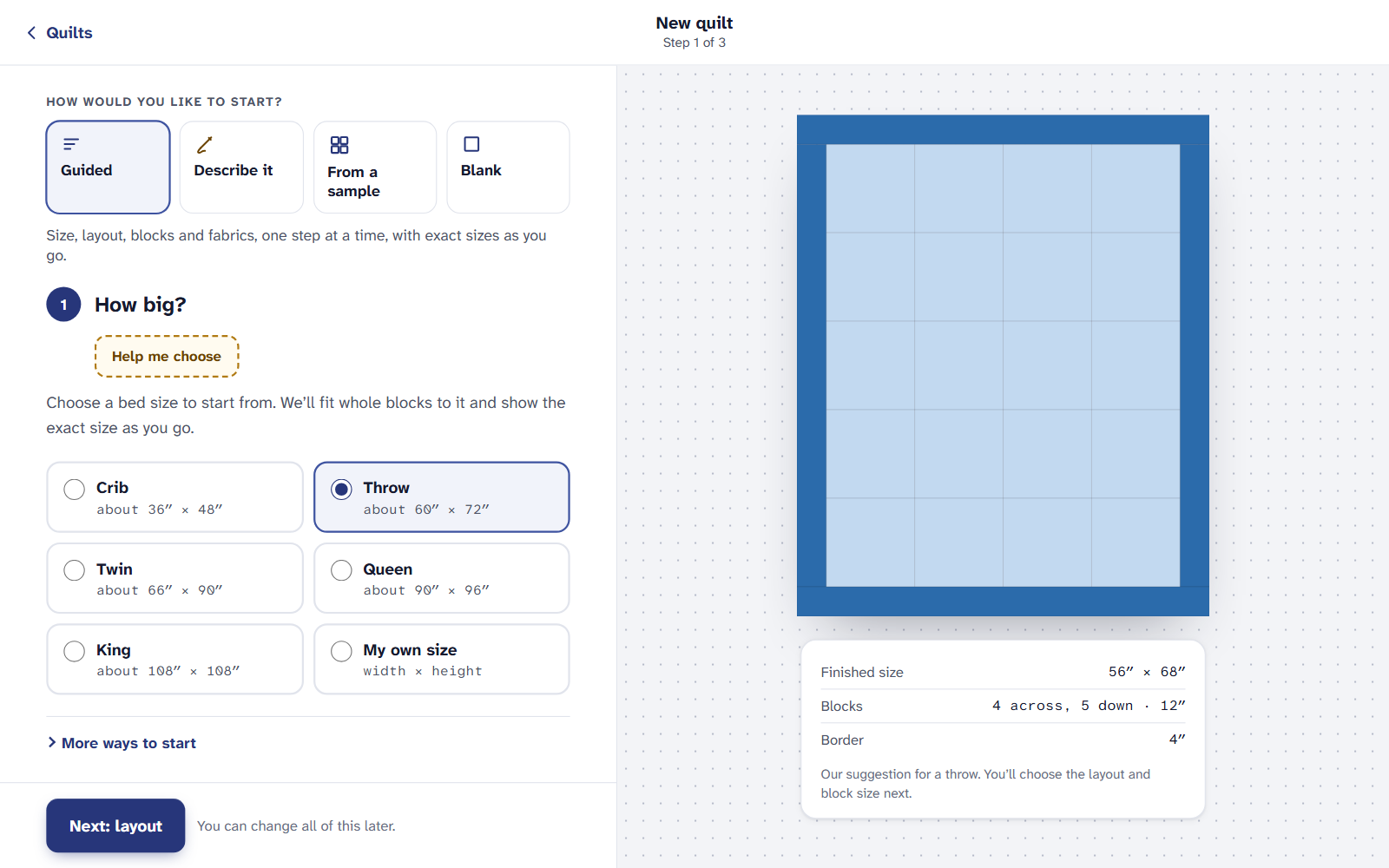
Start guided
Choose New quilt, then Guided.
Under How big?, choose a bed size (Crib, Throw, Twin, Queen and King) or My own size. Quarter Inch fits whole blocks to it and shows the finished size.
Under Layout, choose how the blocks are set, their size, and the borders. Then choose Next: blocks and fabrics.
Choose a first block and a set of fabrics, give the quilt a name, and choose Make my quilt. It opens in the designer, where you can change every square.
Design your first quilt in ten minutes walks through every step with a real quilt. Stuck on a step? Help me choose suggests a choice for that step, and Do the rest for me lets Help finish the quilt from there.
Start from a sample
Choose New quilt, then From a sample.
Tap a sample to see it large.
Choose Make a copy under it. The copy is yours, saved in your library, and opens in the editor. The sample itself never changes.
Start blank
Choose New quilt, then Blank.
Under Size, choose a bed size. The quilt is drawn as empty squares.
Choose Open the editor. Place blocks one square at a time. You can change the layout, the size and the border whenever you like.
More ways to start
On the first step of Guided, under the bed sizes, More ways to start opens two more:
- From a precut you have: a charm pack, layer cake, jelly roll or fat quarters, and what it makes. See Start a quilt from a precut you have.
- Custom layout: whole blocks at different sizes, placed by measurement. See Arrange blocks in your own layout.
On an iPad or a phone
Every way to start is on the Free plan, for up to 3 quilts you’re designing at a time. When you have 3, New quilt shows them so you can delete one, or move to Quilter for as many as you like. Opening and looking at quilts from EQ doesn’t count until you change one.
If it doesn’t look right
- There’s no Describe it. It’s Help’s, so it shows only while Help is on. See Turn Help off, and what it remembers.
- Your own size isn’t exact. Quarter Inch uses whole blocks, so it offers the nearest sizes it can make, and how to keep yours by changing the border or the block size.
- You want to change your mind later. Nothing here is final. Layout, size, blocks and fabrics can all be changed in the designer.
Checked against the app on
Questions
Short answers.
Something else? A real person replies.
hello@quarterinch.app
Which way should I start my first quilt?
Guided. It asks for a size, a layout, blocks and fabrics one step at a time, and shows the exact finished size as you go.
Can I change the layout after I start?
Yes. However you start, the layout, size, borders, blocks and fabrics can all be changed in the designer, and Undo takes back each change.
Does starting from a sample change the sample?
No. Make a copy saves a copy to your library. The sample stays as it is.
How many quilts can I start for free?
The Free plan designs up to 3 quilts at a time. Quilter has no limit.