Using Quarter Inch · Cutting and printing
Fix a print that’s the wrong size: the 1″ test square
Every page Quarter Inch prints has a 1″ test square. Measure it before you cut: if it’s 1″, the page is true size. If not, it’s nearly always one setting.
The short answer
If the test square measures exactly 1″ (25.4 mm) each way, the page is true size. If it isn’t, print again with Scale at 100% (Actual size), not “Fit”, on the same paper as the PDF.
Check a print
Every page Quarter Inch prints has two squares at the top: a 1″ square and a 2 cm square. If they measure right, every template, foundation and diagram on the page is at its true size.
Print the PDF at Actual size, or with the scale at 100%.
Lay your quilting ruler over the 1″ square in the top corner of the page. Measure it across, then down. It should be exactly 1″ (25.4 mm) each way.
If it’s 1″, every page is right: cut away. If it isn’t, choose It isn’t on the Ready dialog. Quarter Inch opens Did the square measure 1″? with No, it’s a little small chosen, and says what to change.
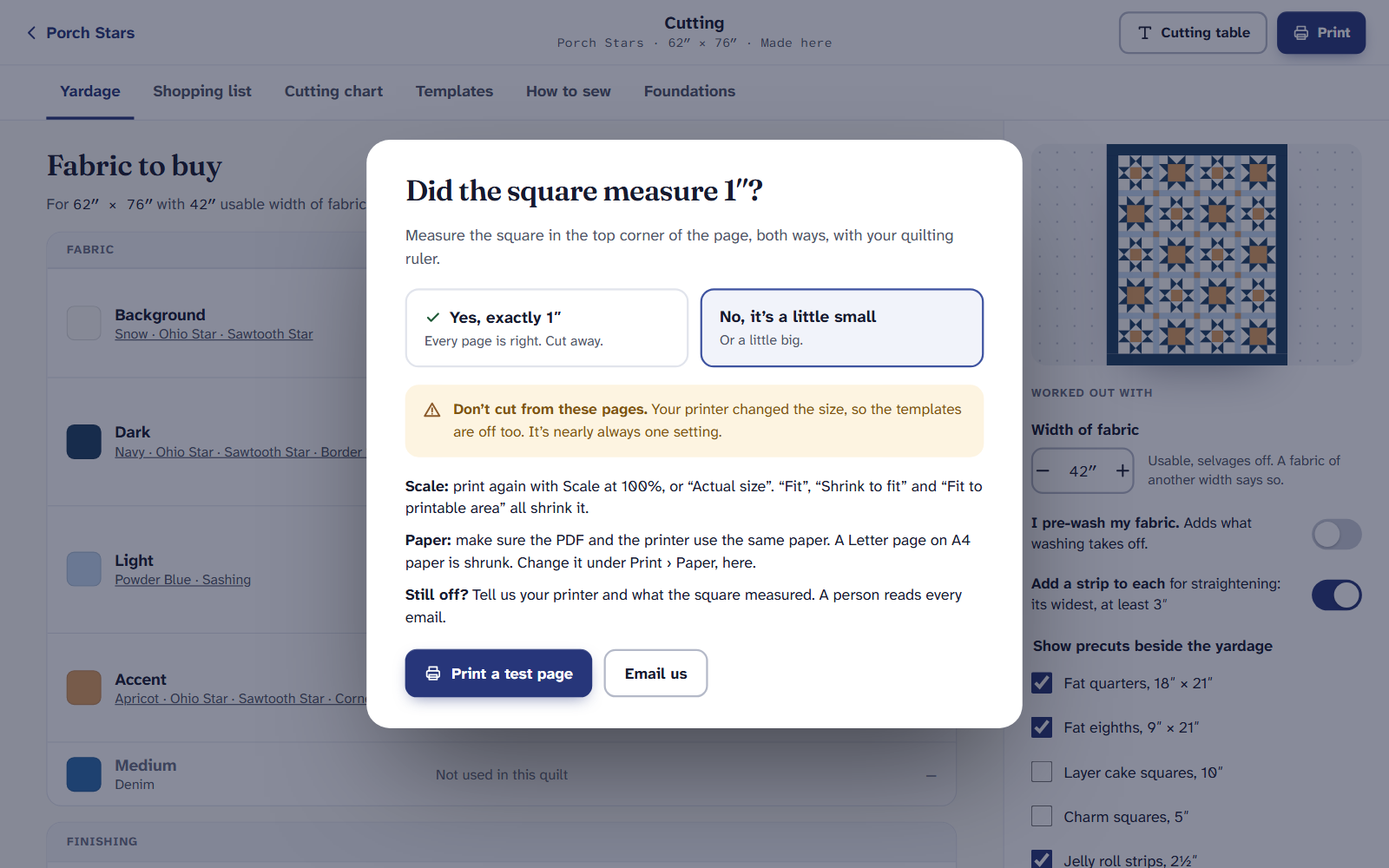
When the square is off, Quarter Inch says what to change.
When it isn’t 1″
- Scale. Print again with Scale at 100%, or “Actual size”. “Fit”, “Shrink to fit” and “Fit to printable area” all shrink it.
- Paper. Make sure the PDF and the printer use the same paper. A Letter page on A4 paper is shrunk. Change it under Print › Paper, and make the PDF again.
- Still off? Choose Email us and tell us your printer and what the square measured. A person reads every email.
Then choose Print a test page: one page with the squares and a 6″ ruler marked in eighths, to check the new settings before you print the rest. Lay your ruler along it: the marks should match yours exactly.
Why this happens, in any program: how to print a quilt pattern at actual size.
Test before a big print
Printing on a printer for the first time? In the Print dialog, choose Print a test page first. It’s one page, so you know the settings are right before you print fifty.
Quilter is $9 a month or $89 a year. Yardage and the Shopping list are free on every plan.
If it doesn’t look right
- You can’t find a Scale setting. The Ready dialog’s steps name it for your device: Mac, Windows, Chrome or iPad. On an iPad there isn’t one, so check the paper.
- A print shop printed it. Ask for it at 100%, actual size, on the paper the PDF was made on, then measure the square before you leave.
- The square is right but a piece seems off. Check it against the cutting chart, then tell us if a number looks wrong.
Checked against the app on
Questions
Short answers.
Something else? A real person replies.
hello@quarterinch.app
Why is my printed pattern too small?
The print window is set to fit the page, which shrinks it a few percent. Print at Actual size, or Scale 100%.
Where is the test square?
In the top corner of every page, beside a 2 cm square.
Can I print on A4 if the PDF is Letter?
Not at true size: a Letter page on A4 is shrunk. Make the PDF again on A4.