Using Quarter Inch · Help
Change a quilt in plain words: Ask Help and Just tell it
While you design, you can ask for a change in your own words. Help suggests it, shows you, and changes nothing until you accept.
The short answer
Help changes your quilt from your own words, and only when you accept. In the designer, choose Help, Point at squares and say what you’d like, then Preview and Accept. For one exact change, type it in Just tell it and choose Show me.
Ask Help for a change
Open the quilt in the designer and choose Help at the top. The Ask Help panel opens beside the quilt.
To ask about part of the quilt, choose Point, then click squares, or drag across them. They’re ringed in gold. Clear lets them go. To ask about the whole quilt, don’t point at anything.
In the box under “Ask about what you’re pointing at, or the whole quilt”, say what you’d like in plain words, such as “lighter” or “make these the same blue as the border”, and press Return.
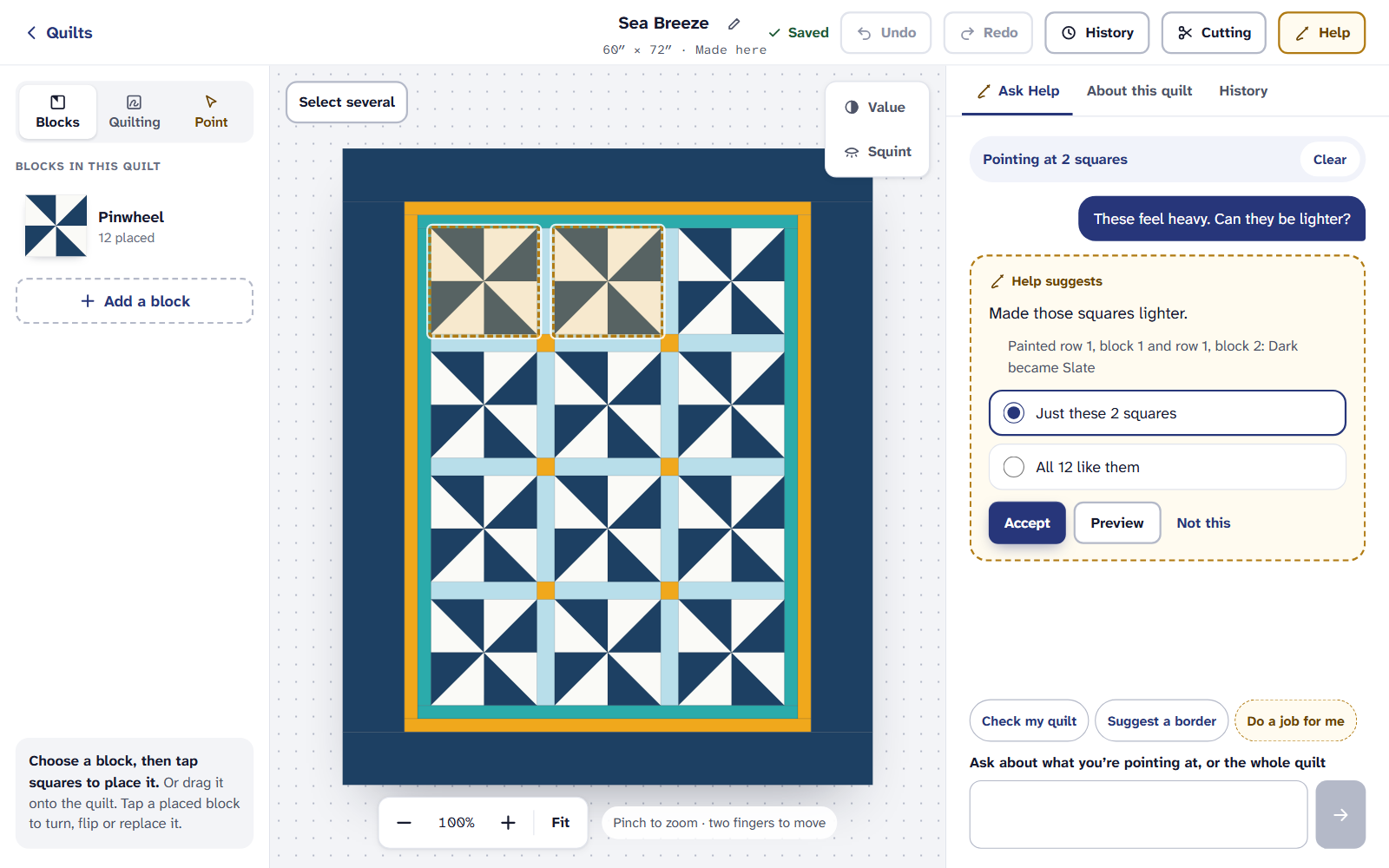
Ask Help. Help’s answer is a suggestion; nothing changes until you accept it. Help answers with a suggestion card: what it would change, in words. If it could go more than one way (just these squares, or every square like them), choose which.
Choose Preview to see it on the quilt (a gold bar says nothing has changed yet), and Done to go back. Then choose Accept, or Not this and, if you like, say What wasn’t right? (optional).
An accepted change is one step in History, labeled as Help’s, so Undo takes it back like any other. If Help isn’t sure what you mean, it asks a question instead; answer it in the box.
“The quilt changed since Help looked.” If you change the quilt while Help is working it out, its suggestion no longer fits. Ask again.
Hand Help a job
Under the box, choose Do a job for me for a bigger change that takes several steps: Finish the borders, Make a second colourway, Make it another size or Something else…. Choose Ask Help for a plan, and Help shows what it will do before it starts. A job runs like a build, with Pause, Stop and Take over, and the whole job is one step in History. Suggest a border is a quick way to ask for one border.
Just tell it
Just tell it is the bar under the designer’s header. It makes one exact change to the quilt from a sentence, and shows you every number that changes first.
Type the change in the Just tell it bar, such as “Make the inner border 2½ inches”, and choose Show me.
A card shows the change and, line by line, each number before and after, worked out by the quilt’s own math. If you’ve made a pattern of the quilt, they’re the pattern’s numbers, for every size.
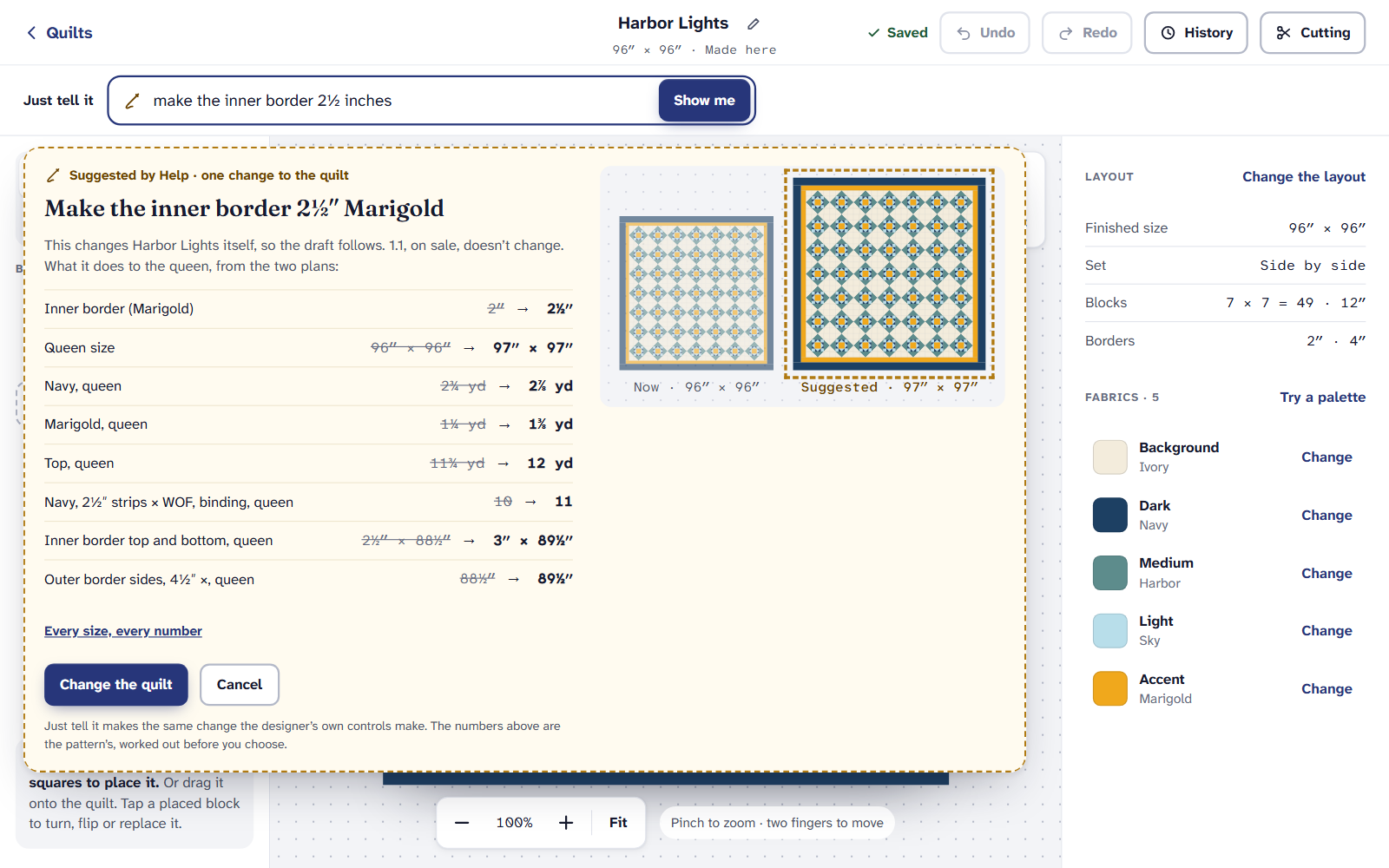
Just tell it. Every number on the card is the engine’s, worked out before you choose. Choose Change the quilt, or Cancel.
Just tell it makes the same change the designer’s own controls make. If Help needs more, it asks; if it can’t, it says Help can’t make that change and nothing changes.
Check my quilt
Check my quilt looks for the things that trip quilters up, and rings the squares each finding is about. The checks are measured by code, not AI: fabrics too alike to tell apart, value and contrast, points to match, bias edges, curves, piece counts and skill, unused fabrics, what you’ll need to buy. With Help on, Help words the findings, and when there’s a fix, it’s a suggestion for you to Accept.
With Show Help off, Check my quilt is a link under the quilt’s facts, and the findings are the measured ones alone.
What counts
Ask Help, jobs, Check my quilt and Help me choose don’t use up anything; they’re only slowed down if you ask a great many at once. Just tell it gives Free 5 requests a month, then it comes with Quilter, which has 200 Help requests a month for Just tell it and making patterns with help.
If it doesn’t look right
- There’s no Help button. Show Help is off, or Help is building a quilt. See Turn Help off, and what it remembers.
- Help changed more than you meant. Choose Undo: each accepted change is one step.
- A number on the cutting chart looks wrong. Choose A number looks wrong? under the chart. It comes straight to us to fix, Help on or off.
Checked against the app on
Questions
Short answers.
Something else? A real person replies.
hello@quarterinch.app
Will Help change my quilt without asking?
No. Ask Help and Just tell it only suggest. Nothing changes until you choose Accept or Change the quilt, and each change is one step in History.
What’s the difference between Ask Help and Just tell it?
Ask Help works on squares you point at, or a whole job, and can ask you questions. Just tell it makes one exact change and lists every number that changes first.
Does Check my quilt use AI?
No. Its checks are measured by code. With Help on, Help puts the findings into words; with Help off you still get them.
Is Ask Help free?
Yes, on every plan. Just tell it has 5 free requests a month on Free, then it comes with Quilter.