Using Quarter Inch · Help
Turn Help off, and what it remembers
One switch hides Help everywhere. The same card shows what Help remembers about how you work, and lets you forget it.
The short answer
One switch hides Help everywhere, and you can make it forget what it has noticed. Choose your name, then Account and settings, and turn off Show Help on the Help card. Help remembers only the sentences under What Help has noticed; choose Forget to delete one, or Forget everything Help noticed.
Turn Help off
Choose your name at the bottom of the sidebar, then Account and settings.
Find the card called Help and turn off Show Help. It saves as you flip it.
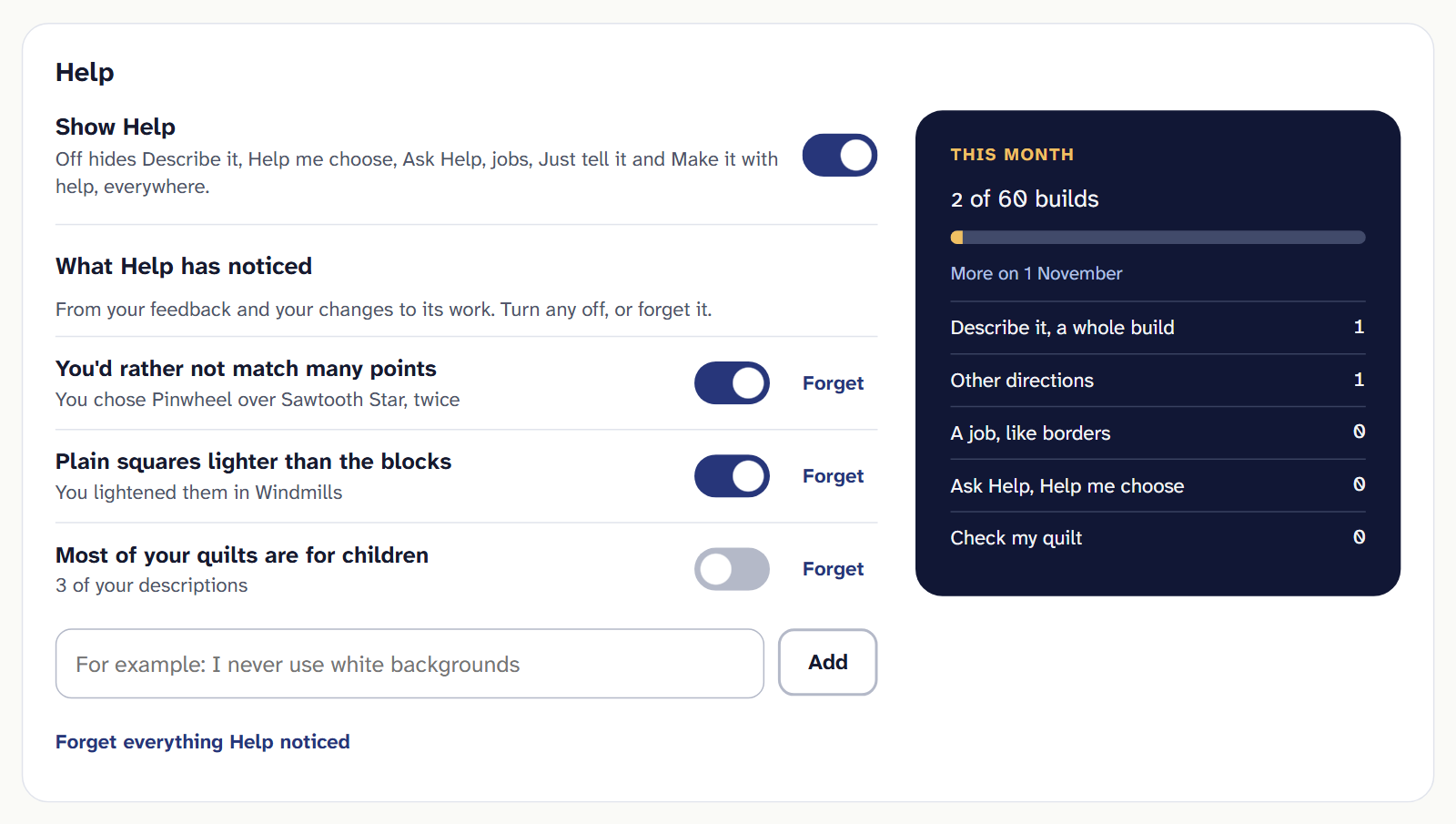
Account and settings › Help. Every Help setting is on this card.
With Show Help off, Describe it, Help me choose, Ask Help, jobs, Just tell it and Make it with help are hidden everywhere, and Help won’t plan, build or change anything for you. Turn it back on the same way.
What stays with Help off:
- Check my quilt, which is measured by code, not AI. It’s a link under the quilt’s facts.
- A number looks wrong? under every cutting chart.
- Quilts Help made before, and every step in their History.
What Help remembers
Help doesn’t carry what you asked about one quilt into requests about another. What goes with every request is the list on the card under What Help has noticed: short sentences about how you like to work, such as “I never use white backgrounds”. Every sentence left on is sent with each request to Help. Today the list holds only what you add yourself.
To add one, type it in the box under the list (it says “For example: I never use white backgrounds”) and choose Add.
To stop Help using one for now, turn off its switch. It stays on the list.
To delete one, choose Forget beside it. With two or more on the list, Forget everything Help noticed deletes them all at once.
Forgotten means deleted from our database, not hidden.
No training on your quilts
There’s no training switch to check. We never use your quilts or designs to train AI, and nothing in Quarter Inch trains on them, whether Help is on or off. Our AI principles say so in writing.
This month’s builds
Beside the switch, This month counts the quilts Help has built for you against your month’s builds, and says when more start. Under it, each kind of Help you’ve used this month is counted: Describe it, a whole build, Other directions, A job, like borders, Ask Help, Help me choose and Check my quilt. Only the first two use up builds.
Taking it with you, or deleting it
- Export everything includes a file of your Help settings, what Help has noticed and the quilts it made for you. Export everything, and the .qi format.
- Deleting your account deletes everything Help kept. Delete your account.
How long the rest is kept, and what a model is sent, is in How Help works and our privacy policy.
If it doesn’t look right
- “That didn’t save. Please try again.” The switch went back as it was. Check your connection and flip it again.
- “Help is off” when you choose Describe it from an old link: choose Turn Help on, or turn on Show Help in Account and settings.
- There’s no Forget everything. It appears once the list has two or more sentences. With one, choose its Forget.
Checked against the app on
Questions
Short answers.
Something else? A real person replies.
hello@quarterinch.app
How do I turn off the AI in Quarter Inch?
In Account and settings, turn off Show Help on the Help card. Describe it, Help me choose, Ask Help, jobs, Just tell it and Make it with help are then hidden everywhere.
Does Check my quilt go when Help is off?
No. Its checks are measured by code, not AI, so they stay. Only Help’s wording of them goes.
What does Help remember about me?
Only the sentences under What Help has noticed, which you can turn off or forget. What you ask about one quilt isn’t carried into requests about another.
Are my quilts used to train AI?
No. We never use your quilts or designs to train AI, so there’s no switch for it.