Using Quarter Inch · Cutting and printing
Print your quilt
Print makes one PDF of the parts you choose: the quilt and its fabrics, the cutting chart, templates, foundations and more. It’s made on your device in a few seconds, at true size, with a 1″ test square on every page.
The short answer
Print makes one true-size PDF of the parts you choose, with a 1″ test square on every page. On the quilt’s Cutting page, choose Print, tick the parts, pick Letter or A4, then Make the PDF. Print it at Actual size (100%), and measure the 1″ square before you cut.
Print a quilt
Open the quilt’s Cutting page and choose Print, top right. On the quilt itself, Print sits beside Cutting chart.
Tick the parts you want. A part your quilt has none of can’t be ticked. To print templates for only the blocks you’re making next, choose Choose blocks, tick those blocks, then Make the PDF.
PrintPrint Window SeatThe quilt and its fabricsCutting chartBlock diagrams, with the pieces letteredSewing stepsTemplatesChoose blocksSwatches to take to the shopThe parts you see depend on the quilt: foundations, appliqué templates, lettering and a Quilting group appear when it has them.
Under Paper, choose Letter or A4: the paper in your printer. Under Picture, choose In color or Black and white.
PaperLetterA4PictureIn colorBlack and whiteChoose Make the PDF. Printing for the first time on this printer? Choose Print a test page first: one page, to check the size before you print them all.
Make the PDFPrint a test page firstWhile it’s made you see Making the PDF and the page it’s drawing. Stop takes you back to your choices.
When Your PDF is ready, choose Download. Under Print it at Actual size, Quarter Inch shows the steps for your device: Mac, Windows, Chrome or iPad. It picks yours, and you can choose another.
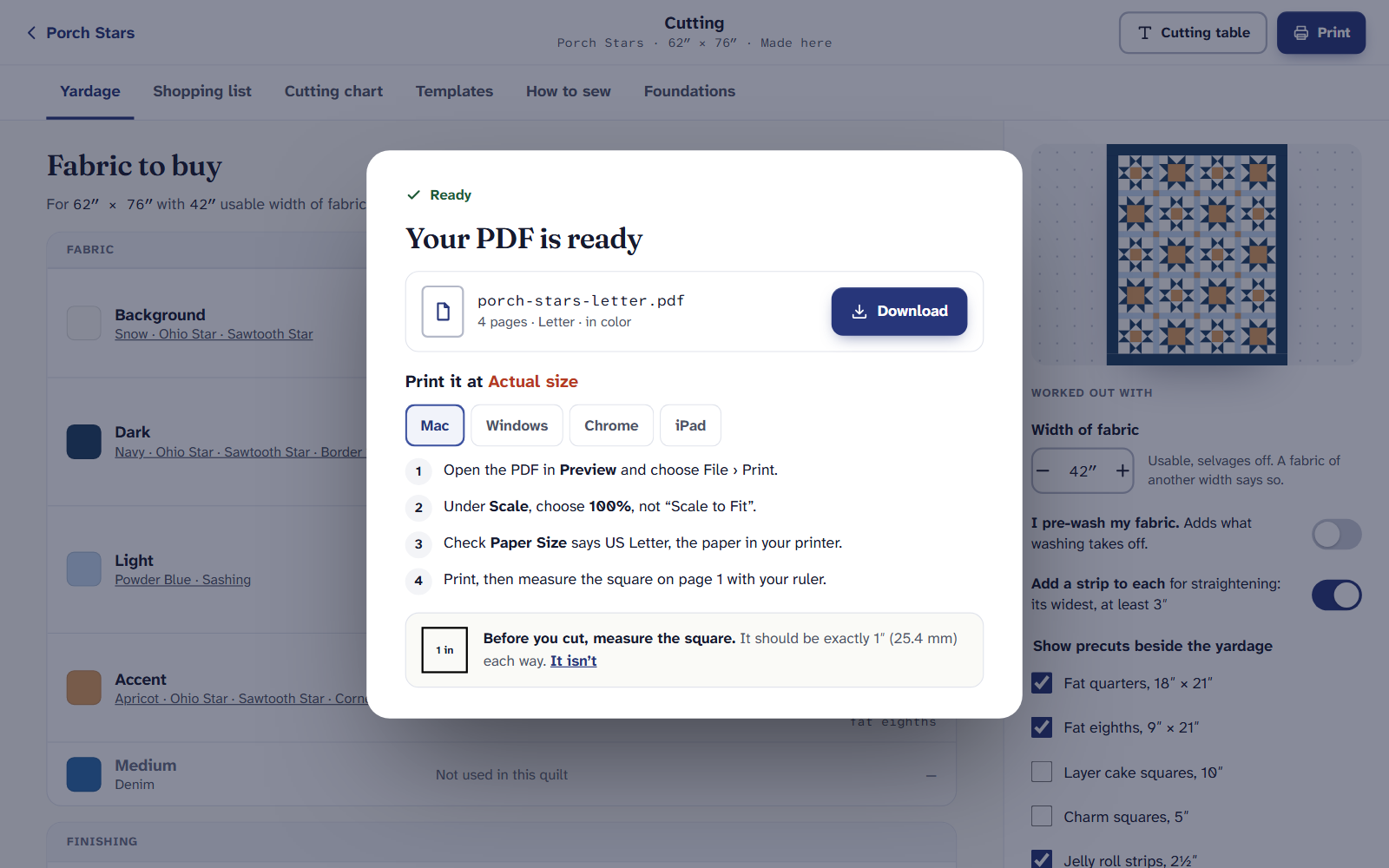
The Ready dialog. The tabs change the steps to your device. Before you cut, measure the square on page 1. It should be exactly 1″ (25.4 mm) each way. If it isn’t, choose It isn’t and Quarter Inch takes you through the fix.
Why the square matters. A print window set to “Fit” shrinks every page a few percent, too little to see and enough to spoil a template. Printing at actual size.
The Actual size steps, by device
- Mac: Open the PDF in Preview and choose File › Print. Under Scale, choose 100%, not “Scale to Fit”. Check Paper Size says US Letter.
- Windows: Open the PDF in Adobe Acrobat Reader and choose File › Print. Under Page Sizing & Handling, choose Actual size, not “Fit”. Check the paper is US Letter.
- Chrome: Open the PDF in Chrome and press Print. Under More settings, set Scale to Custom, 100. Check Paper size says US Letter.
- iPad: Tap Download, then the Share button, then Print. Choose your printer and, under Paper Size, US Letter. iPad has no Scale setting.
On A4 paper the same steps say A4. Each ends the same way: print, then measure the square on page 1 with your ruler.
On an iPad or a phone
Printing from an iPad or a phone has every step.
Big quilts
A PDF over 60 pages is split, so each file is quick to open and print. Quarter Inch says A quilt too big for one PDF and lists the files: the templates go in a PDF of their own. Choose Make both PDFs to make them in one go.
Already ticked off some cuts? Under Your ticks, Print asks whether to print the ones you’ve ticked, so the paper starts where you are, or Every box empty, to make it again or to give away.
Nothing is uploaded or kept: the PDF is made on your device, at true size, with a 1″ test square on every page. Make it again any time. A quilt with many templates can take up to a minute, and the dialog says how far it’s got.
On the Free plan you can still see your Yardage and Shopping list, and plan every part of the quilt. Quilter is $9 a month or $89 a year.
If it doesn’t look right
- The square measures small. Your print window is set to fit the page, or the paper doesn’t match. The test square, and fixing it.
- A part is grayed out. The quilt has none of it: Templates says “none in this quilt” when every piece is cut with the ruler, for example.
- It says Couldn’t make the PDF. Choose Try again, or Print in parts to make the chart and the templates as separate PDFs. Your saved quilt has not changed.
- A number looks wrong. Choose A number looks wrong? on the cutting chart. It comes straight to us as a bug to fix. What to check first.
Checked against the app on
Questions
Short answers.
Something else? A real person replies.
hello@quarterinch.app
Do I need Adobe Acrobat to print?
No. On a Mac, Preview prints it; in Chrome, its own viewer does. On Windows the Ready dialog’s steps use Acrobat Reader, which is free.
Can I print in black and white?
Yes. Under Picture, choose Black and white, and the pictures print in grays.
Is the PDF saved anywhere?
No. It’s made on your device and nothing is uploaded or kept. Make it again any time; it takes a few seconds.
Why are there two PDFs?
A print over 60 pages is split so each file opens and prints easily. The templates go in a PDF of their own.