Using Quarter Inch · Getting started
Sign in without a password, with an email code
Quarter Inch has no passwords. You type your email, we send you a 6-digit code, and the code signs you in. The same steps make a new account.
The short answer
There’s no password: a code sent to your email signs you in, and the same steps make a new account. Choose Sign in, type your email, choose Email me a code, then type the 6-digit code from the email. A code works for 10 minutes, and a new code replaces the last one.
Sign in, or make your account
There is one way in for everyone. A new email address gets its account the first time its code is used, so you never choose between “sign in” and “sign up”.
Go to app.quarterinch.app and choose Sign in, at the foot of the page.
Type your email address and choose Email me a code. If the address looks like a typing slip, Quarter Inch asks “Did you mean…?”: choose Yes, use that or No, it’s right.
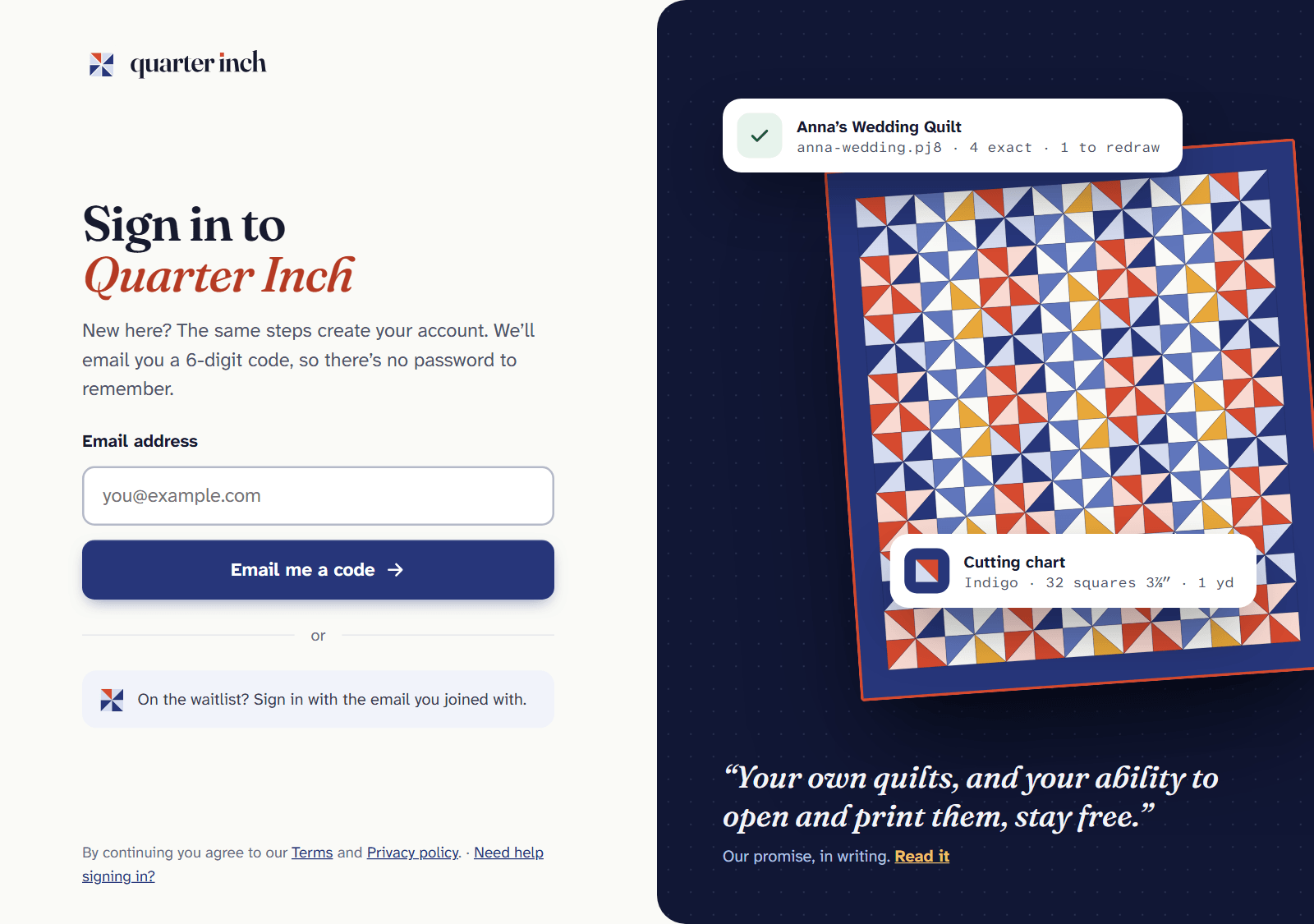
One screen for signing in and for a new account. Open the email from Quarter Inch. It holds a 6-digit code and never a link. It also says when the code was asked for and on what device, so you can tell it’s yours.
Type or paste the code into 6-digit code.
Leave Keep me signed in on this device ticked on your own computer or iPad. Untick it on a shared or library computer. Then choose Continue.
New here? Answer the short questions on the next page (what to call you, inches or centimeters, and whether you have quilts in EQ8), then choose Take me to my quilts. You can change these later in Account and settings.
How long a code works, and staying signed in
- A code works for 10 minutes. Asking for a new one replaces the last, so always use the newest email.
- Five wrong tries use a code up. Ask for a new one.
- You can ask for a new code 60 seconds after the last. The page counts down until you can.
- With Keep me signed in on this device ticked, you stay signed in for 60 days, and each visit renews that. Unticked, you’re signed out when the browser closes, and after 12 hours at most.
Signing out, and other devices
Open Account and settings from the account button and choose Sign out. Under Signed in on, the account page lists every device you’re signed in on. Lost a phone, or left a library computer signed in? Choose Sign out everywhere else.
Changing your email On the account page, choose Change beside your email. Quarter Inch checks it’s you with a code to your current address, then sends a code to the new one. Your quilts and receipts stay with your account.
If it doesn’t look right
- No email yet. Check your spam or junk folder, then choose send a new code under the field once the timer runs out.
- “That code doesn’t match.” You may have used an older email: each new code replaces the last one. Use the newest, or choose Send a new code.
- That code has expired. Codes work for a short while, to keep your account safe. Choose Email me a new code.
- “Too many attempts. Please try again later.” After many wrong codes, or many codes asked for in an hour, Quarter Inch waits before sending more. Try again later.
- Please sign in again. Your 60 days ran out on this device. Your quilts are safe: choose the button to email a code to your address. Not you? Choose the “Use another email” link under it.
- Typed the wrong address? On the code screen, choose Use a different email.
- Still stuck? Choose Need help signing in? on the sign-in screen. It opens an email to us.
Checked against the app on
Questions
Short answers.
Something else? A real person replies.
hello@quarterinch.app
Do I need a password for Quarter Inch?
No. You sign in with a 6-digit code emailed to you each time. There’s no password to remember or reset.
How long does the sign-in code last?
10 minutes. Each new code replaces the last one, and five wrong tries use a code up.
How do I make a Quarter Inch account?
Sign in with your email address. A new address gets its account the first time its code is used. The Free plan needs no card.
How long do I stay signed in?
60 days with “Keep me signed in on this device” ticked, renewed each time you use it. Unticked, until the browser closes, or 12 hours at most.
The code email hasn’t arrived. What do I do?
Check your spam folder, then ask for a new code once the 60-second timer runs out. Use the newest email: older codes stop working.