Using Quarter Inch · Getting started
Design your first quilt in ten minutes
The guided start takes you from a bed size to a finished quilt design in three steps, then shows how much fabric to buy. You can change everything later.
The short answer
The guided start takes you from a bed size to a finished quilt design, then shows how much fabric to buy, all free. Choose Start a quilt, then pick a size (How big?), a Layout, and a first block and fabrics. Choose Make my quilt, change it in the designer, then open Cutting for its yardage.
Start a new quilt
The guided start asks three things, one step at a time: how big, which layout, and which blocks and fabrics. The drawing beside the steps changes as you choose, with the exact finished size.
Go to app.quarterinch.app and choose Start a quilt. You’ll make a free account first, with an emailed code: no card, no password. (Signed in already? Choose New quilt in your library.)
New here? On the welcome page, choose No, I’m starting fresh, then Continue.
Under the ways to start, keep Guided chosen. Under How big?, choose a bed size: Crib, Throw, Twin, Queen or King. Or choose My own size, type a width and height, and choose Use this size. Then choose Next: layout.
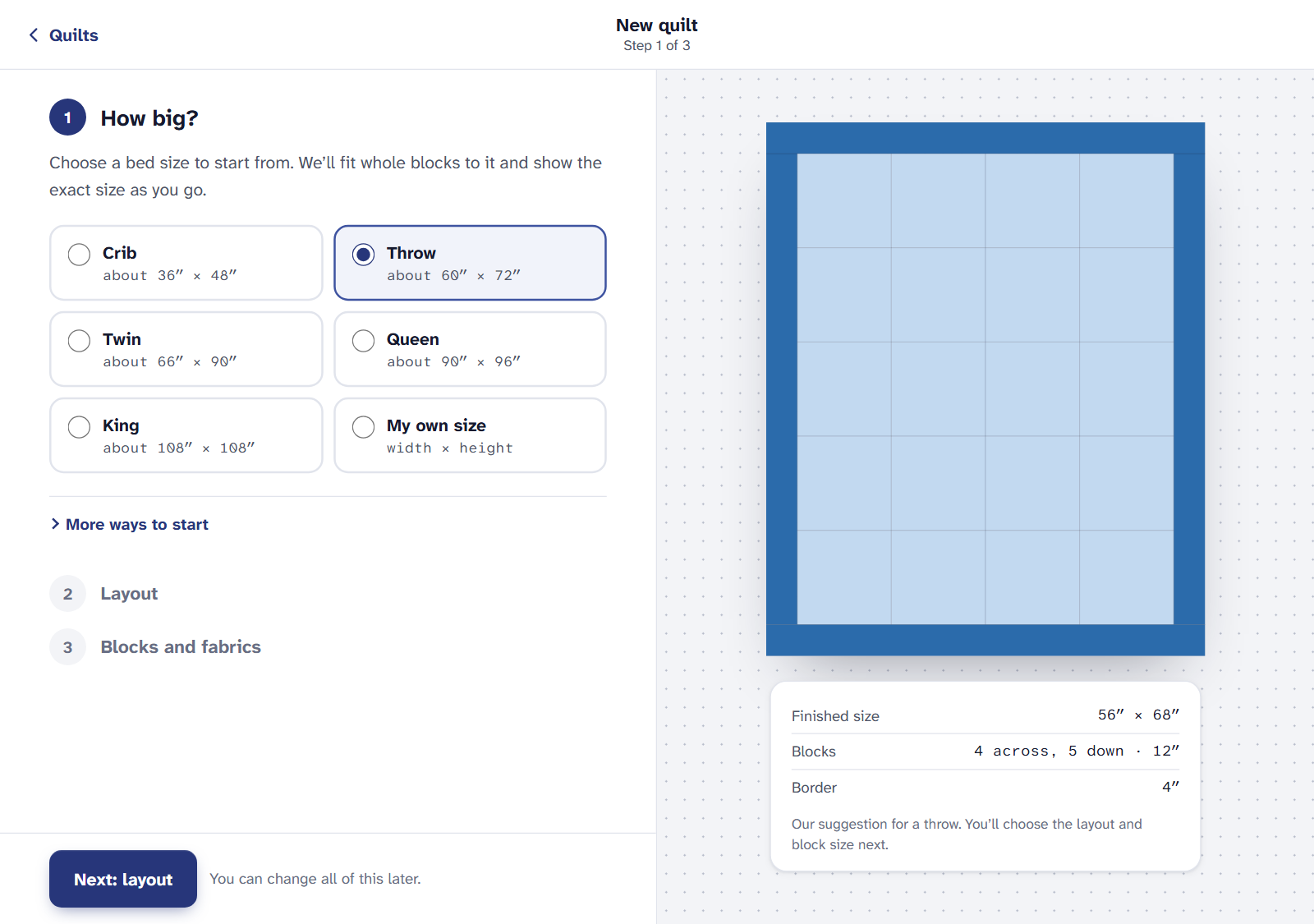
Step 1: the size. Quarter Inch fits whole blocks to it. Under Layout, choose how the blocks sit: Side by side, With sashing, On point and more. Choose a Block size, and change Blocks across and Blocks down if you like. The finished size updates as you go. Then choose Next: blocks and fabrics.
Under How would you like to start?, choose Fill with one block, Alternate two blocks or Start empty. Pick A first block, or choose See every block for the whole library.
Under Fabrics, choose a palette. Its colors are Quarter Inch Solids, our own color card, and you can swap any of them later. Give the quilt a Name.
Choose Make my quilt. It opens in the designer, saved to your library.
Change it in the designer
To put in another block, choose Add a block, pick one, then tap the squares where it goes. Choose Done when you’ve placed enough.
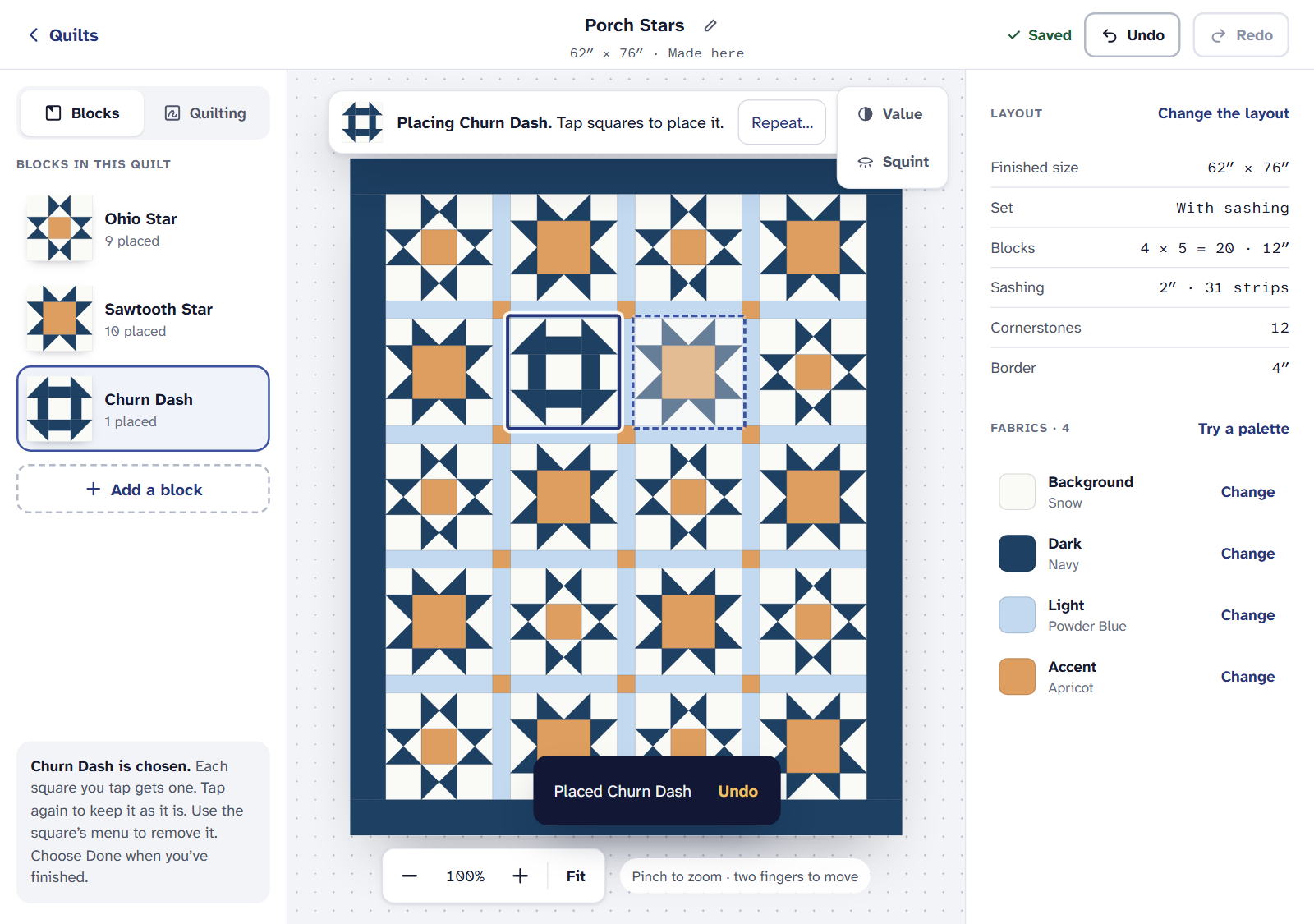
Tap a placed block for its menu: turn it, flip it, replace it, or make the square plain.
To try other colors, choose Try a palette. To change the size or borders, choose Change the layout.
Made a change you don’t like? Choose Undo. Every change is saved as you make it: the header says Saved.
See how much fabric to buy
Choose Cutting in the designer’s header. The page opens on Yardage: how much of each fabric to buy, worked out from the quilt itself. The Shopping list beside it is the same, ready to take to the shop.
Yardage and the Shopping list are free. The Cutting chart, templates and true-size printing are part of Quilter. The Free plan designs 3 quilts at once.
If it doesn’t look right
- Make my quilt won’t go. Give the quilt a name first.
- Your own size doesn’t fit whole blocks. Quarter Inch offers the nearest sizes that do, with blocks or a border a little different. Choose one.
- “You’re designing 3 quilts, the most on the Free plan.” Delete a quilt you’ve finished with, or get Quilter.
Rather start from a finished quilt? The six sample quilts are ready to change, from a crib quilt to a queen.
Checked against the app on
Questions
Short answers.
Something else? A real person replies.
hello@quarterinch.app
Do I need an account to design a quilt?
Yes, a free one. Starting a quilt goes through sign-up with an emailed code. No card is needed.
Can I change the size after I start?
Yes. In the designer, choose Change the layout to change the size, blocks across and down, sashing and borders.
Is the yardage free?
Yes. Yardage and the Shopping list are free on every plan. The cutting chart and printing are part of Quilter.
Can I use my own fabrics?
Yes. Start with a palette from Quarter Inch Solids, then swap any fabric for a color card color, your own color or a photo of your fabric.