Using Quarter Inch · Color and fabrics
Color a quilt: Paint, Swap and Try a palette
Change one fabric everywhere, all five at once, or a patch at a time. Each is one change, and Undo takes it back.
The short answer
Change a quilt’s fabrics everywhere, all at once, or patch by patch, and Undo takes any change back. To change one fabric everywhere, choose Change beside it under Fabrics; for all five, choose Try a palette. To color only some patches, choose Paint, pick a fabric and how far a tap reaches, then tap the quilt.
Every quilt has five fabrics by role: Background, Dark, Medium, Light and Accent. There are three ways to change them, and each is one change that Undo takes back.
- Change one fabric everywhere it’s used: choose Change beside it.
- Change all five at once: Try a palette.
- Color only some patches: Paint, or trade two fabrics with Swap.
Change one fabric
Open the quilt. On the right, under Fabrics, choose Change beside the fabric you want to change.
Pick a color from Quarter Inch Solids, or open My fabrics for your own photos, colors and saved prints. You can search by name or number. The quilt shows your choice straight away, as a preview.
Choose Use this fabric to keep it. Close the sheet without choosing it, and nothing changes.
Try a palette
A palette changes all five fabrics at once. The starter palettes are Indigo and rust, Meadow, Berry and Cocoa.
Beside Fabrics, choose Try a palette.
Choose a palette. A note at the foot of the screen says how many fabrics changed, with Undo beside it. Try as many as you like.
Choose Done when you’re happy.
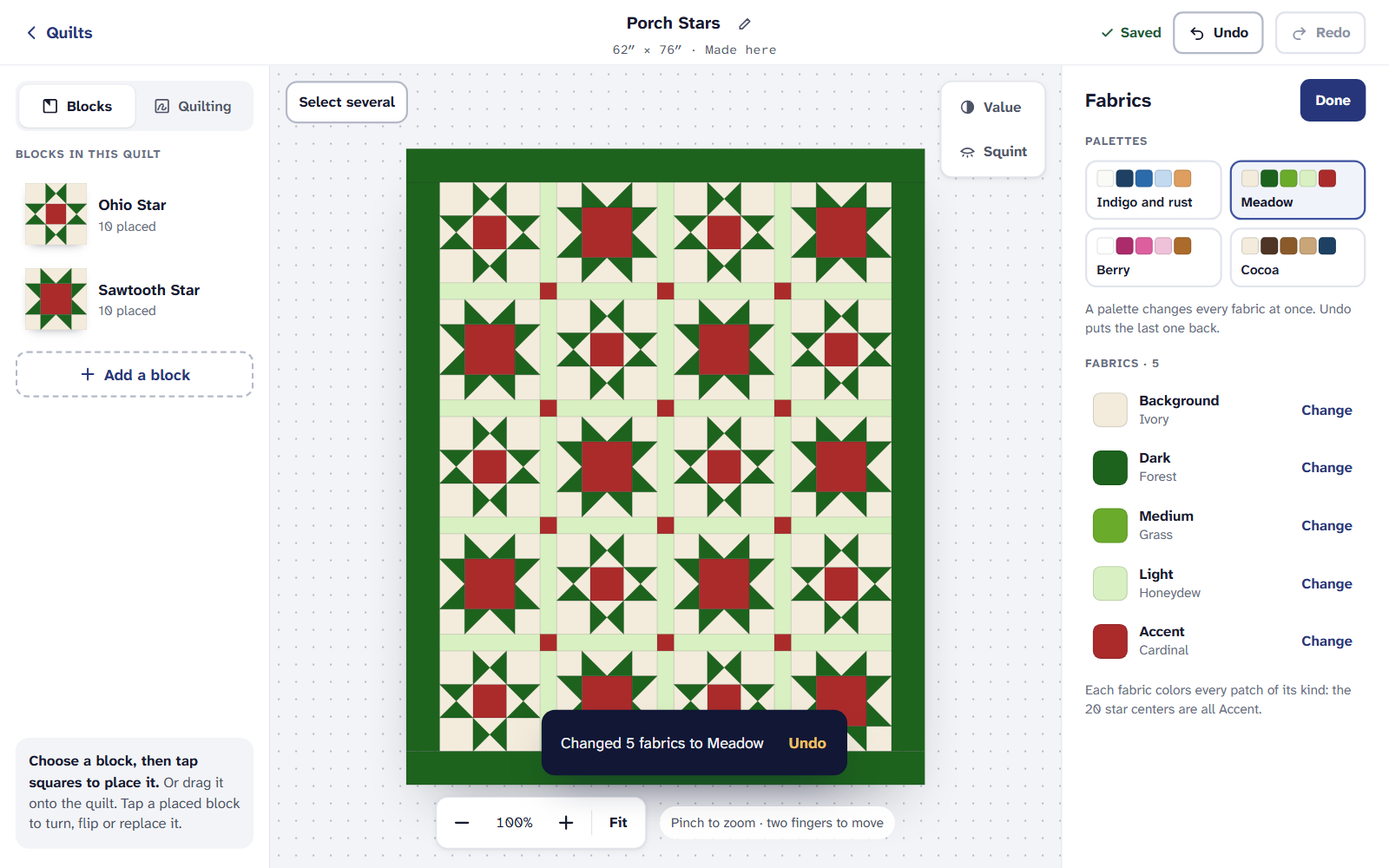
Each palette changes every fabric at once.
Fabrics with no role, ones you’ve painted in, keep their color when you change palettes.
Paint some patches
Above the left panel, choose Paint. It sits beside Blocks, in the switch for what tapping the quilt does.
Under Paint with, choose one of the quilt’s fabrics, or Choose from a color card… for a new one.
Under How far it reaches, choose how much one tap colors:
- Just this patch
- This patch, in every block like it (where it starts)
- All of its fabric, in this block
- All of its fabric, in every block like it
- All of its fabric, everywhere
Tap the quilt. Each tap is one change, so one Undo takes it back.
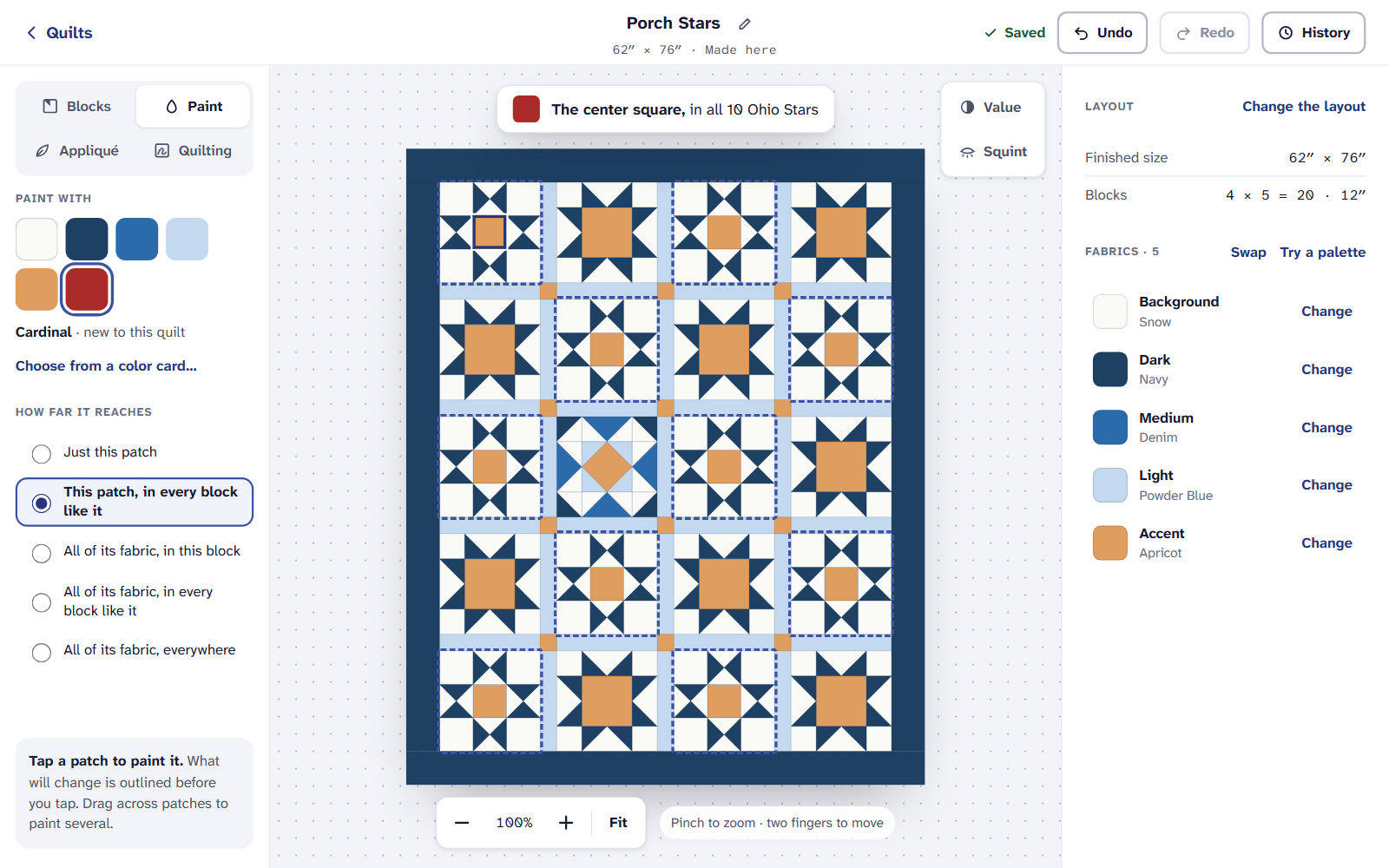
Paint: a fabric, then how far each tap reaches.
A new color you paint in joins the quilt as an extra fabric. It’s listed under More fabrics, with how many patches it colors and Change.
Swap two fabrics
In Paint, choose Swap beside Fabrics.
Tap the first box, then a fabric; then the second box, then another fabric.
Choose Swap them. Every patch of the first fabric takes the second, and the other way around.
On an iPad or a phone
A quilt from EQ
To color a quilt you opened from EQ8 or EQ7, choose Change this quilt first. Its fabrics keep EQ’s names, each with Change, and Try a palette shows the palette beside the quilt before you take it. Your EQ file itself is never changed. More in Changing an EQ quilt.
Paint, Swap, palettes and every fabric are on the Free plan, for up to 3 quilts at a time. Quilter adds the cutting chart and printing, and more quilts.
If it doesn’t look right
- There’s no Paint. Paint is a mode beside Blocks. On a quilt from EQ, choose Change this quilt first.
- A palette left a fabric alone. Palettes change the five fabrics by role. Painted-in fabrics keep their color: change them under More fabrics.
- The colors on screen aren’t the fabric’s. Screens vary. Quarter Inch Solids is our own card, so compare it with real fabric before you buy, or use a photo of your own.
Checked against the app on
Questions
Short answers.
Something else? A real person replies.
hello@quarterinch.app
How do I change every fabric in a quilt at once?
Choose Try a palette beside Fabrics and pick one. All five fabrics change, and Undo puts them back.
Can I color just one patch?
Yes. Choose Paint, pick a fabric, set How far it reaches to Just this patch, then tap the patch.
What does Swap do?
It trades two fabrics everywhere they’re used: every patch of one takes the other, and the other way around.
Is coloring a quilt free?
Yes. Paint, Swap and palettes are on the Free plan, for up to 3 quilts at a time.