Using Quarter Inch · Blocks
Draw your own block
Choose a grid, draw seams from point to point, fill squares with units and color the pieces. Every size is exact.
The short answer
Draw your own block on a grid, every size exact, and keep it in My blocks. Open Blocks, then My blocks, and choose Draw a new block. Pick a grid, draw seams with Line, fill triangles and geese with Units, color with Color, then choose Done and Save to My blocks.
The block editor draws a block the way you would on graph paper: choose a grid, draw seams from point to point, and color the pieces. Every point is on the grid, so the block is exact at any size, and its cutting sizes and templates come straight from it.
For how to plan a block on paper first, see How to design your own quilt block.
Start a new block
Open Blocks, then My blocks, and choose Draw a new block. To start from a library block instead, open it and choose Edit a copy.
Under What kind of grid?, choose Squares for most blocks. (45° star and 60° triangles are for stars and hexagons: see Diamonds, hexagons and 60° grids.)
Under How many squares across?, choose the grid: 2, 3, 4, 5, 6, 7, 8, 9, 10, 12, 14, 15, 16 and 24. A four-patch block is on 2 or 4, a nine-patch on 3 or 6. You can choose a finer grid later, and every line you’ve drawn stays where it is.
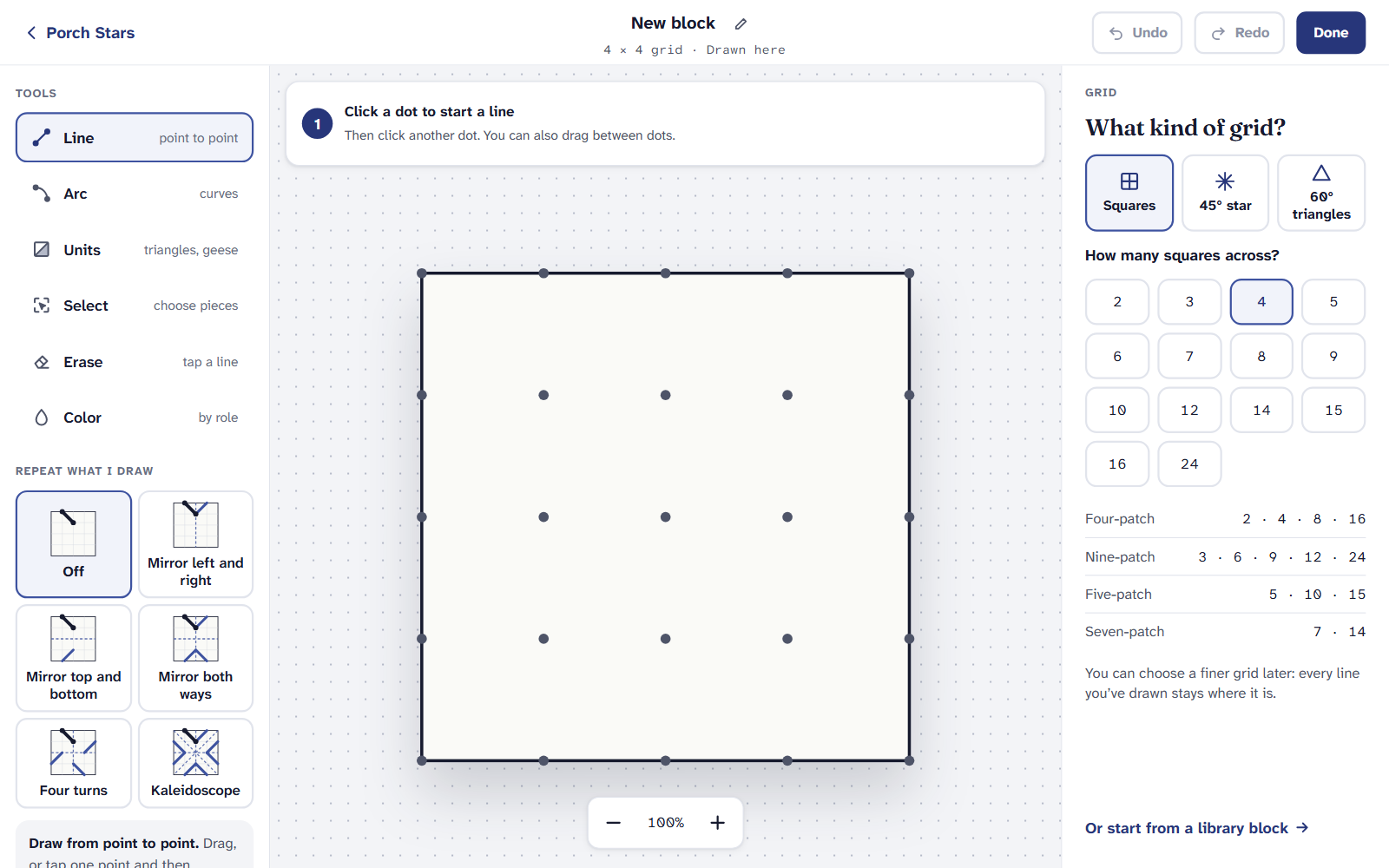
Choose the grid first. A finer one later keeps what you’ve drawn.
The tools
- Line (point to point): Draw a seam from one point of the grid to another. Every line that closes a patch makes a new piece.
- Arc (curves): Draw a curve: a quarter circle, or a line bent into an exact curve.
- Units (triangles, geese): Fill squares with a ready-made unit, turned the way you want.
- Select (choose pieces): Choose pieces to copy, duplicate, turn, flip, erase or move.
- Erase (tap a line): Tap a line or curve to take it away.
- Color (by role): Give a patch a role: Background, Dark, Medium, Light or Accent.
Draw, fill and color
Choose Line. Drag from point to point, or tap one point, then the other. A line that doesn’t close a patch yet is dashed, so you can see it needs another line to meet.
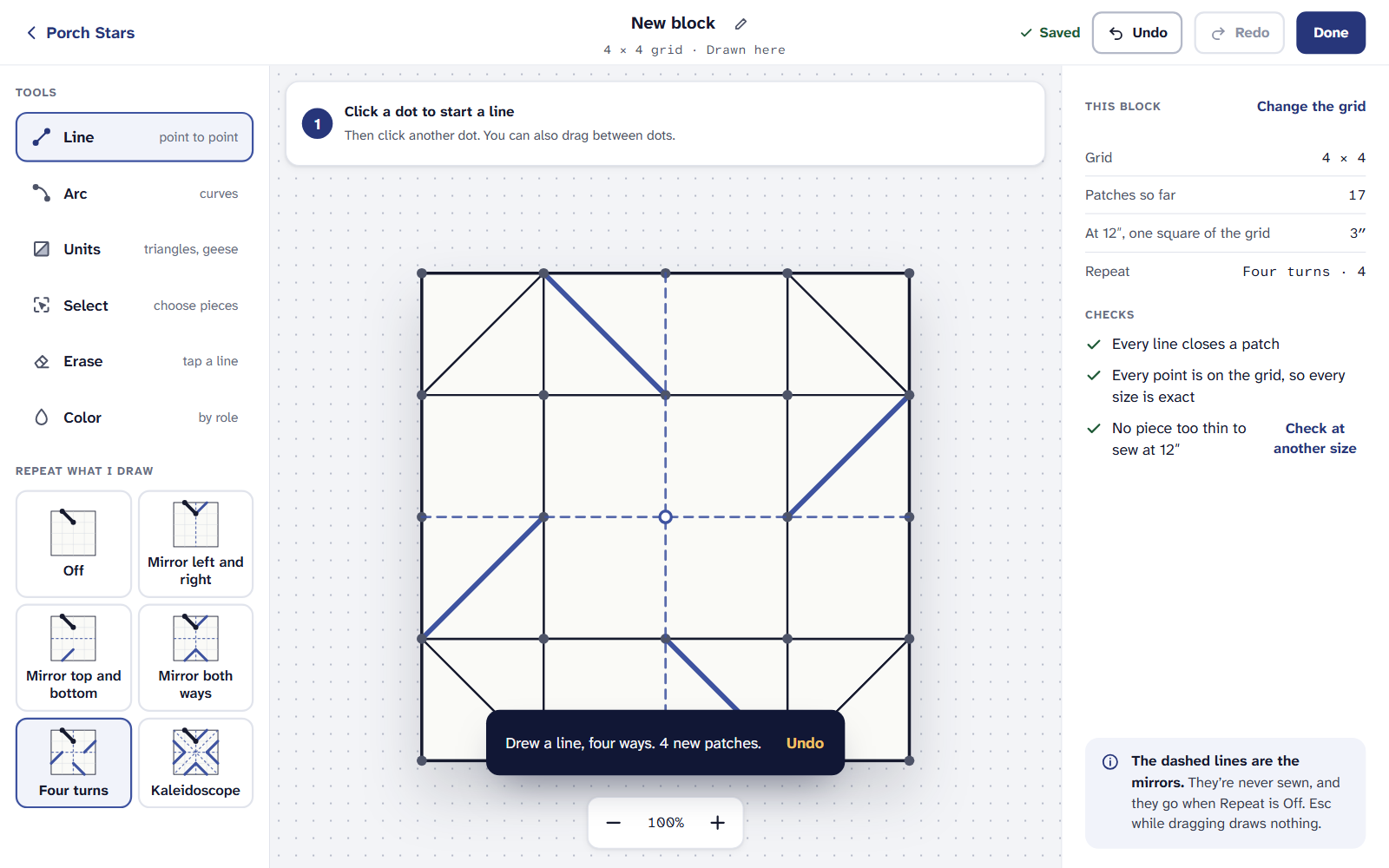
Every line closes a patch, and every point is on the grid. For triangles and geese, choose Units, pick one (Half-square triangle, Quarter-square triangle, Flying geese or Square in a square), and drag across the squares it should fill, or tap one. Turn turns it before you place it. You can also drag a unit’s card straight onto the block: it fills the piece you drop it on.
Choose Color, pick a role, and tap a patch or drag across several. Roles, not fabrics: in a quilt, each role takes that quilt’s fabric, so one block works in any colorway. You can drag a role’s swatch onto a patch too.
Made a mistake? Undo takes back the last change, and Erase takes away a line you tap.
To draw the same thing in every corner at once, use Repeat what I draw: see Repeat: four ways, mirror and kaleidoscope.
Save it
Choose Done. Under Name your block, type its Name.
Choose Save to My blocks. If you started from a quilt’s Add a block, Save and place in that quilt is there too, and takes you back to place it. Keep drawing closes the box.
Your block is in My blocks with its own page: Add to a quilt, Rename, or change it again. A quilt keeps the copy it took, so changing the block later never changes a quilt behind your back; the designer offers Use the new version instead.
On an iPad or a phone
The block editor and My blocks are on the Free plan, with no limit on blocks. Placing a block in a quilt counts toward the Free plan’s 3 quilts, as any quilt does. The cutting chart and templates for your block need Quilter.
If it doesn’t look right
- A patch won’t color. It isn’t closed yet. A dashed line shows where a seam stops short: draw the line that meets it.
- A line jumped to another point. Lines snap to the nearest grid point. Zoom in, or choose a finer grid for smaller pieces.
- A warning says a piece is too thin. It’s a warning, not a stop. See “Too thin to sew”: the block checks.
Checked against the app on
Questions
Short answers.
Something else? A real person replies.
hello@quarterinch.app
Can I change a library block?
Yes. Open it and choose Edit a copy. The copy is yours in My blocks; the library’s block stays as it is.
Why color by role and not by fabric?
A role (Background, Dark, Medium, Light or Accent) takes each quilt’s own fabric, so one block works in any colorway.
Can I draw a block on my iPad with Apple Pencil?
Yes. Apple Pencil draws just as a finger does, and points snap to the grid.
Is the block editor free?
Yes, on the Free plan, with no limit on blocks.