Using Quarter Inch · Making it
Tick off cuts and sewing steps as you go
Tick each cut and sewing step as you go. Your place is kept with the quilt, on every device, through changes to the quilt.
The short answer
Tick each cut and sewing step as you go, and your place is kept with the quilt on every device. Open the quilt’s Cutting page, choose Cutting table, cut what’s in the big box, then tap Tick it off. On How to sew, tick each step.
Tick each cut on the cutting chart, and each step in How to sew, as you finish it. Your ticks are kept with the quilt, so you can stop for a week, pick up your phone instead of the iPad, and carry on from the same cut.
Cut at the cutting table
The cutting table is the chart made for the mat: one cut at a time, in big type you can read from an arm’s length away.
Open the quilt’s Cutting page and choose Cutting table. It opens at the fabric with the next cut to make.
The cut to make now is the biggest thing on the screen. Cut it, then tap Tick it off. The next cut takes its place.
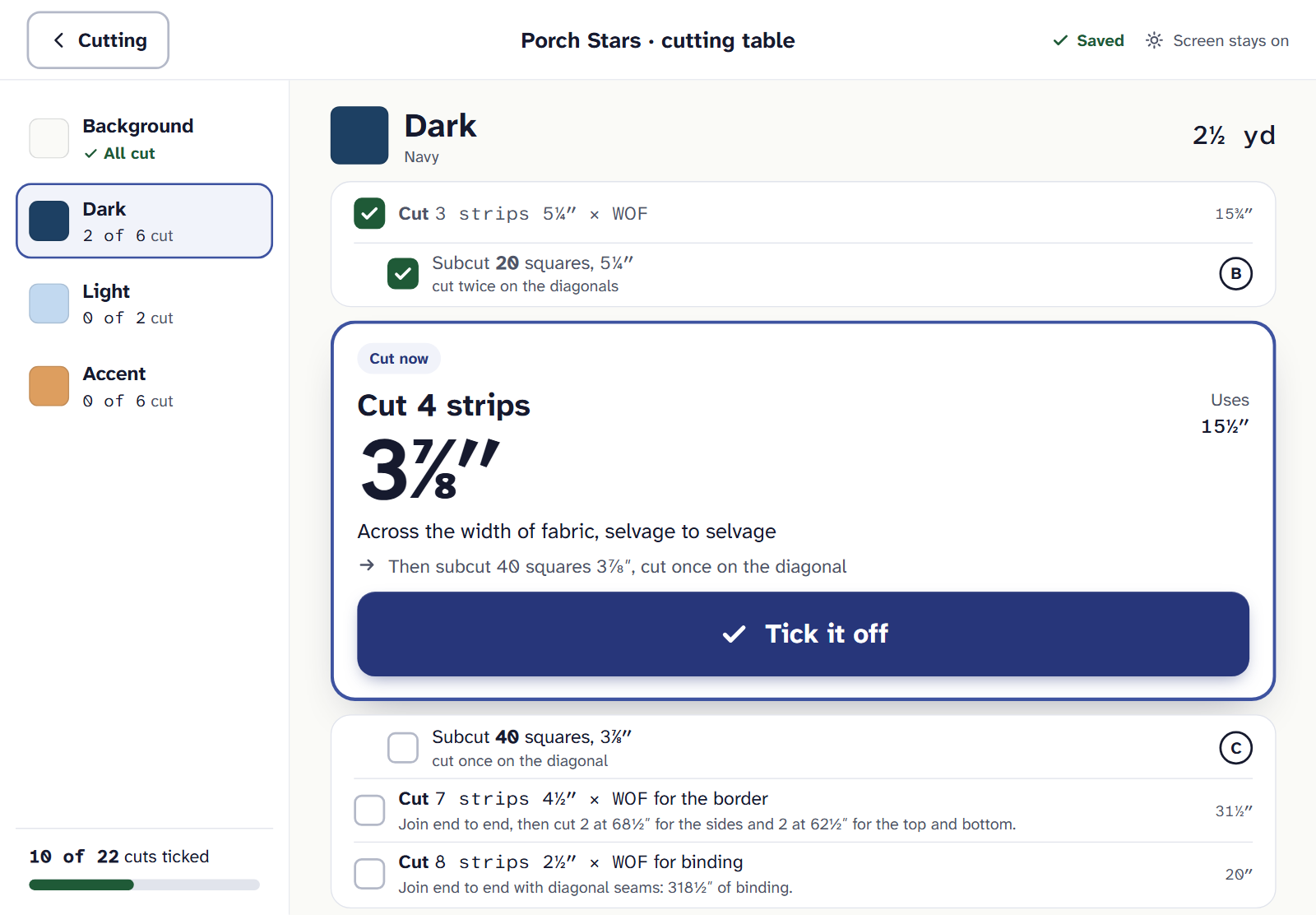
The cut to make now, big, with Tick it off under it. Ticked the wrong one? Undo stays until your next tick. Any cut you’ve ticked also unticks with one tap.
When a fabric is all cut, fold it away and choose the next fabric. When Every piece is cut, it’s time to sew.
You can tick later cuts out of order too: they wait below the cut to make now.
Tick on the cutting chart
On the Cutting chart tab, tap anywhere on a row to tick it. The next cut is ringed. Beside the chart, Where you left off shows how far you’ve got, with Carry on at the cutting table.
Tick off sewing steps
On the How to sew tab, tick each step when you’ve sewn it for every block it’s for. Done steps fold to one line, and the next is ringed.
To sew a step at a time beside the machine, choose Sew at the sewing table (or Carry on at the sewing table), and tap Tick it off after each step.
Coming back to it
- Your library card shows how far you’ve got, like “Cutting · 10 of 22”, “Sewing · 4 of 12”, and “✓ Made” at the end.
- The quilt you ticked most recently is offered at the top of your library as Pick up where you left off.
- Ticks show on every device you sign in on. With no internet, they wait on the device and are saved when it’s back online.
If you change the quilt after cutting
Only the cuts the change affects lose their tick, and each says why. Make the border wider and only the border’s strips untick. Add a row of blocks and a cut that grew says how many more to make, for example “You’d cut 2. Cut 1 more strip.” A cut that shrank stays ticked, with its spare.
If a change in the designer takes a tick off, the designer says so at once, with Undo. Undo the change, and the ticks come back.
On paper, or starting again
- When you Print, choose under Your ticks: print the cuts you’ve ticked, so the paper starts where you are, or Every box empty, to make it again or give it away.
- To start again, choose Clear ticks… beside the chart. It asks first; Keep my ticks leaves them. Clearing can be undone too.
On an iPad or a phone
The cutting chart, the cutting and sewing tables, and ticking are part of Quilter, $9 a month or $89 a year. On the Free plan you can still see your yardage. If Quilter ends, your ticks are kept with the quilt.
If it doesn’t look right
- Some ticks came off. The quilt changed and those cuts did too. Each says what changed and how many more to cut.
- Ticks aren’t on my other device. They may be waiting for a connection on the first one. Open it with internet and they’re saved.
- The screen keeps going dark. Set your device’s auto-lock to its longest while you cut.
Cutting from the chart for the first time? How to read a quilt cutting chart explains strips and subcuts.
Checked against the app on
Questions
Short answers.
Something else? A real person replies.
hello@quarterinch.app
Do my ticks show on my other devices?
Yes. They’re kept with the quilt. With no internet they wait on the device and are saved when it’s back online.
What happens to my ticks if I change the quilt?
Only the cuts the change affects untick, each saying why and how many more to cut. Undo the change and they come back.
Can I print the chart with my ticks?
Yes. When you print, choose to print the ones you’ve ticked, or every box empty.
Do I lose my ticks if I stop paying for Quilter?
No. They’re kept with the quilt, and its library card still shows how far you got.